Why Wont My Controller Connect To My PS5
7 August 2026 | 411
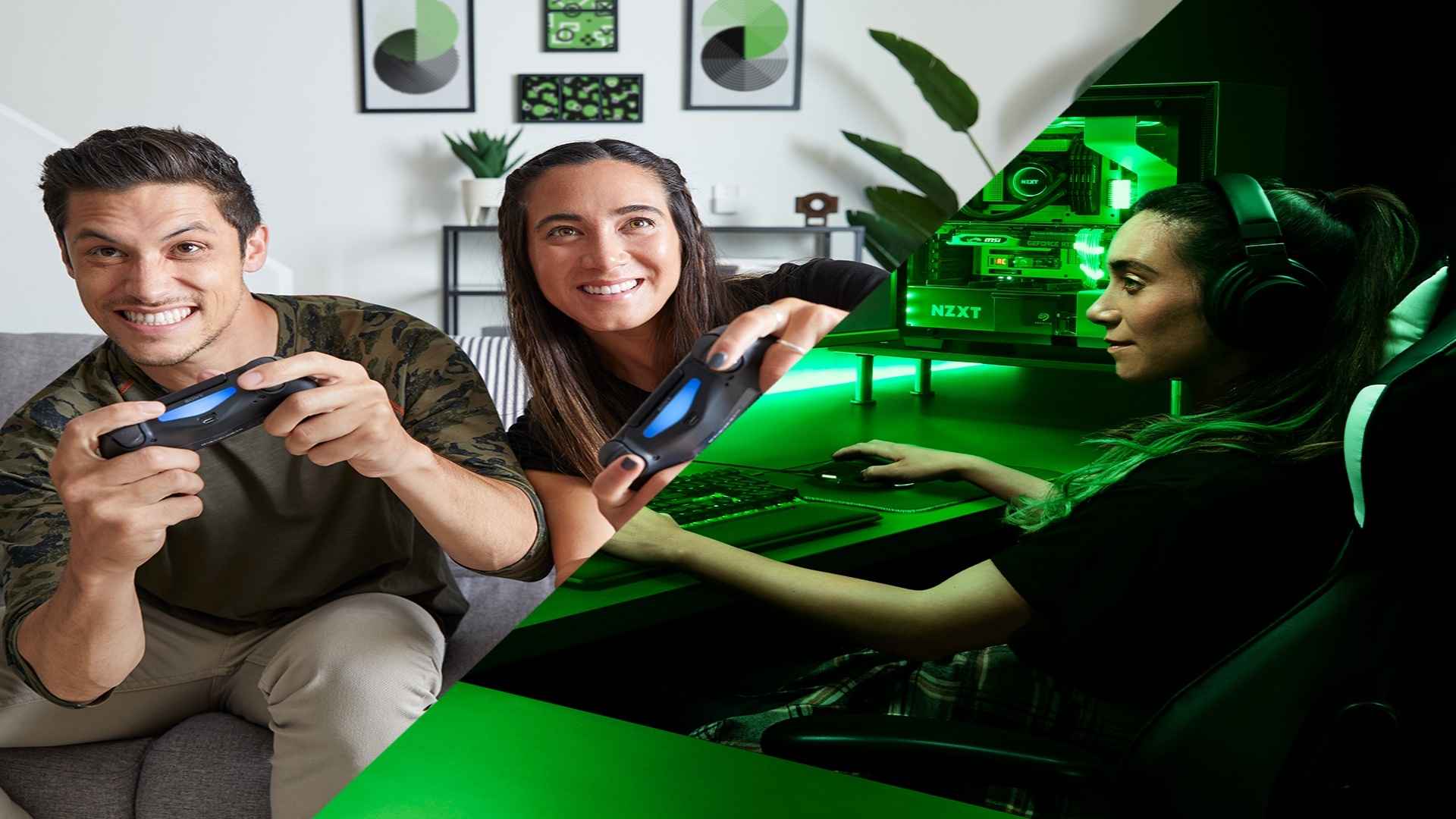
Sitting down for an immersive gaming session only to find your console refusing to recognize your input device can be incredibly frustrating. The PlayStation 5 DualSense controller relies on precise wireless handshakes, making it susceptible to minor digital interruptions. Fortunately, most pairing failures stem from straightforward configuration issues rather than hardware corruption.
The Traps of Using Charge Only USB Cables
When your wireless sync fails completely, forcing a direct hardware handshake using a physical connection is usually the most effective troubleshooting step. However, many gamers pick up random cords around the house without realizing that not all cords are built the same way. Many generic accessories are charge-only variants that lack the internal data lines required to transmit system pairing signals.
If your device pulses yellow but refuses to establish a blue status light, your current wire is likely missing the necessary internal data infrastructure. Swapping to the original high-quality cord that came packaged inside your retail box is highly recommended. Ensuring you use the proper equipment can immediately resolve hidden syncing failures.
Managing Wireless Frequency and Signal Obstacles
The console communicates with its peripherals via standard Bluetooth frequencies, which operate on the crowded 2.4 GHz spectrum. Local wireless routers, household appliances, and even smart televisions can emit massive waves of invisible signal noise. This environmental congestion can cause the console to drop connection frames or refuse incoming pairing requests entirely.
To bypass these invisible barriers, you can temporarily clear the immediate physical space around your console setup. Moving electronic accessories away from the hardware helps establish a clean line of sight for the signal. You can also adjust your home network settings to utilize isolated bands to decrease local traffic.
Performing a Complete Hardware Reset
When the software environment inside the gamepad becomes unresponsive, a localized memory flush is required to clear corrupt cache files. Sony engineers anticipated these temporary software glitches by building a physical override mechanism directly into the external casing. You will need a small straightened paperclip or a specialized SIM ejection tool to access this function.
Locate the tiny circular opening situated near the official branding insignia on the rear side of the device. Insert your tool carefully and depress the internal button firmly for roughly five seconds while the console is powered off. This completely wipes the stored profile data and allows the peripheral to attempt a clean handshake upon rebooting.
Updating System Software and Device Firmware
Outdated system parameters can create severe compatibility issues between your input hardware and the main operating system. Sony regularly deploys mandatory updates designed to patch peripheral bugs and optimize response times. Running an outdated configuration can cause sudden disconnections during intensive gameplay sessions.
Navigate directly into your system settings menu using a secondary device to verify that your console is running the latest build. Connecting your problematic hardware via a verified data link will often prompt an automatic device firmware update window. Keeping both items updated ensures a stable connection architecture over long periods.